Field note · Guide
Kids Dancing Videos Ai
# How to Create Safe, Original Kids Dancing Videos with AI: A Step-by-Step Tutorial Creating digital content that appeals to younger audiences has become a comp...
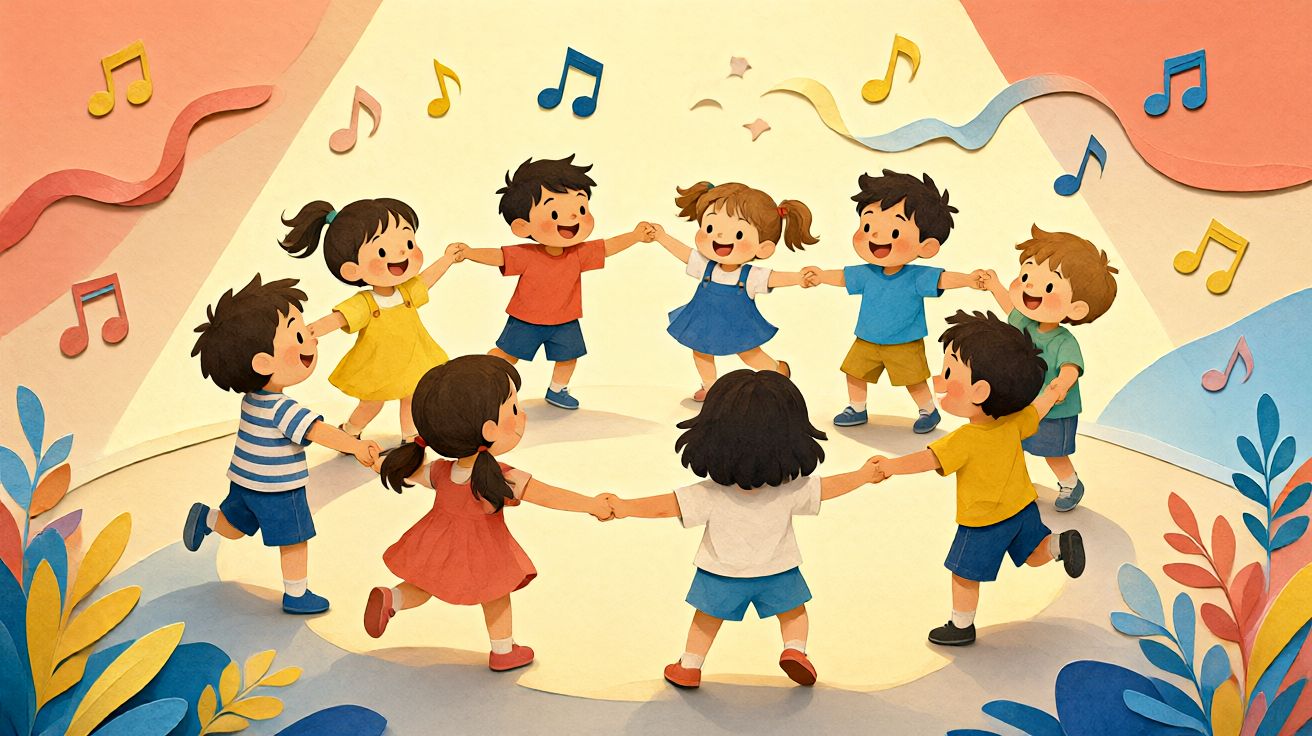
How to Create Safe, Original Kids Dancing Videos with AI: A Step-by-Step Tutorial
Creating digital content that appeals to younger audiences has become a complex balancing act. Content creators, educators, and parents want to generate engaging visual assets that are safe, age-appropriate, and original. However, traditional video editing is often too time-consuming, and general-purpose AI video tools can produce inconsistent or unsafe results when prompted with specific age groups.
This guide focuses on how to use specialized AI creative generators to produce short, reviewable clips of "kids dancing videos ai" generated from text or reference stills. We will walk through the specific technical process using KDA Dance AI, a tool designed for short-form, one-shot clip generation, helping you understand the limits, input types, and best practices for responsible content creation.
Understanding the Scope: What You Can (and Cannot) Generate
Before diving into the tutorial, it is crucial to define the boundaries of this technology. KDA Dance AI is not a full non-linear editing system (NLE). It does not offer multi-scene editing, automated captioning, music synchronization, or a direct publishing suite to social media platforms.
Instead, the tool operates on a specific model designed for short, reviewable one-shot clips.
- Input Type: You can generate content using detailed text prompts or by uploading up to two reference still images.
- Output Format: The result is a single, continuous video clip.
- Duration & Resolution: Clips are typically short (e.g., 5–10 seconds) and optimized for vertical or square social media formats.
- Credit System: Generation is not unlimited. Each video renders uses a credit estimate based on duration and complexity.
This focus allows creators to produce high-quality, isolated animations—such as a child performing a specific dance move—without the complexity of timeline editing. It is ideal for social media posts, educational snippets, or avatar animations, but it requires manual review and post-processing for larger projects.
Step 1: Crafting Age-Appropriate Text Prompts
The quality of your output is determined entirely by the specificity of your input. To generate realistic yet safe "kids dancing videos ai" content, you must avoid vague terms like "child" which can sometimes trigger inconsistent age perception. Instead, use descriptive age markers and context.
Best Practices for Prompts:
- Define the Age Range: Use terms like "toddler," "preschooler," or "school-age" rather than just "child."
- Specify Clothing: Clothing consistency is a major factor in video realism. Describe the outfit in detail (e.g., "bright yellow t-shirt and blue jeans").
- Define the Move: Do not say "dance." Describe the motion. For example, "swaying side-to-side with hands on hips."
- Set the Background: A simple, static background helps the AI focus on the motion. "Bright studio with white background" is often better than "crowded park."
Example Prompt:
"A 6-year-old girl in a red hoodie and black leggings, swaying side-to-side in a bright studio with a white background. High quality, 4k, smooth motion."
Step 2: Utilizing Reference Stills for Consistency
Text prompts offer creativity, but reference images offer consistency. If you have a specific character design or a real-life reference (for educational purposes, with proper consent), you can use the reference image feature.
- Select Up to Two Images: The system accepts up to two reference stills. One can be a portrait for face consistency, and the other can be a full-body shot for clothing and proportion reference.
- Upload and Map: Upload the images. The AI will analyze the pose and texture of the reference.
- Combine with Motion Prompt: When using reference images, your text prompt should focus on the action rather than the appearance.
- Prompt: "Performing a hip-hop isolation move."
- Reference: [Image of character].
This method is particularly useful for animating existing avatar designs or consistent characters across multiple short clips.
Step 3: Estimating Credits and Managing Costs
Unlike unlimited generators, KDA Dance AI operates on a credit-estimate step. This ensures fairness and resource management. Before generating, the platform displays the estimated credit cost based on:
- Video Length: Longer clips cost more.
- Complexity: Fast, high-amplitude movements require more computational power than slow, subtle motions.
Pro Tip: Start with the shortest possible duration to test the motion quality. If the 5-second clip looks jerky, you can adjust the prompt rather than committing to a longer, more expensive render. You can view available plans and understand the credit breakdown on our Pricing page.
Step 4: Generating and Reviewing the Clip
Once you have your prompt or reference images ready, initiate the generation process.
- Submit Request: The system will queue your job.
- Wait for Processing: Processing time varies based on server load.
- Review Immediately: This is the most critical step. Because these are one-shot clips, you must manually review the output for:
- Artifacts: Check for limb distortions or clothing glitches.
- Safety: Ensure the character does not appear in unsafe or inappropriate poses.
- Motion Smoothness: Verify that the dance move flows naturally.
If the clip fails, you can regenerate it with a slightly adjusted prompt or upload a better reference image. There is no "auto-fix" feature; human review is essential.
Common Pitfalls and Honest Limitations
It is important to manage expectations regarding what this technology can achieve.
- No Multi-Scene Editing: You cannot cut between two different backgrounds in a single generation. Each clip is a single scene.
- No Audio Integration: The generator does not create synchronized music. You must add audio in post-production using a separate tool.
- Consistency Challenges: Even with reference images, hair and clothing may shift slightly between different clips. This is a known limitation of current diffusion-based video models.
- No Guaranteed Results: AI is probabilistic. A prompt that works well once may produce a glitchy result the next time. Iteration is part of the process.
Use Cases: Where Short-Form Dance Clips Fit
These short, reviewable clips are perfect for specific niches:
- Educational Content: Teachers creating snippets to demonstrate dance steps for young learners.
- Social Media Avatars: Brands animating their mascots performing simple dance loops.
- Gaming Assets: Developers creating short animation loops for in-game characters.
For a deeper dive into the models available and their specific strengths, you can explore our AI models library. Each model is tuned for different motion qualities.
Responsible Creation and Privacy
When creating content involving minors, even AI-generated ones, responsibility lies with the creator.
- No Real Child Data: Never upload images of real children without explicit written consent from guardians.
- Safety Check: Always verify that the generated content does not resemble a specific real-world minor.
- Copyright: The characters and motions you create are generally yours to use, subject to our terms of service. However, do not claim the AI is a human creator.
You can learn more about our commitment to privacy and safe usage in our Blog, where we discuss ethical AI guidelines.
Conclusion: A Practical Workflow
Creating "kids dancing videos ai" content is not about replacing human editors; it is about accelerating the creation of specific, short-form assets. By using KDA Dance AI, you can bypass the hours of modeling and keyframing to get a usable clip in minutes.
The Workflow Recap:
- Define your age-appropriate prompt or reference image.
- Estimate your credits to ensure budget alignment.
- Generate a short 5–10 second clip.
- Review the output manually for artifacts and safety.
- Iterate if necessary, or export for post-production.
This approach allows creators to maintain control over the final product while leveraging the speed of AI. For a broader overview of how this fits into your creative toolkit, visit our Homepage to see the full platform capabilities.
By sticking to short, one-shot clips and maintaining a manual review process, you can produce high-quality, safe dance animations that enhance your content without the risk of generic, low-quality AI filler.
Questions readers ask
Questions About This KDA Dance AI Video Guide
What is KDA Dance AI and how does it work for creating kids dancing videos?
KDA Dance AI is a scenario-video tool designed to generate synchronized dancing videos featuring children. It uses AI to blend user-provided imagery or avatars with selected dance movements and audio tracks, producing coherent, high-quality video content tailored for parents, educators, or creators.
Does KDA Dance AI offer a free trial or credits to new users?
Yes, KDA Dance AI provides a limited free trial for new users, typically including a set number of generation credits. This allows you to test the tool's capabilities and explore different dance styles before committing to a paid subscription plan.
Are watermarks included in the videos generated by KDA Dance AI?
Watermark policies depend on your subscription tier. Free-tier generations usually include a small KDA Dance AI watermark. Paid plans generally offer watermark-free exports, enabling clean, professional output for personal or public sharing.
Can I use videos generated with KDA Dance AI for commercial purposes?
Commercial use rights are governed by your specific subscription agreement. While personal use is standard for all plans, commercial licensing—such as for advertising or paid content—may require a premium tier or add-on. Always review the current terms of service for the latest licensing details.
How long does it take to generate a kids dancing video on KDA Dance AI?
Generation speed varies based on video length, complexity, and current server demand. Most standard short-form clips (under 10 seconds) process within 1–3 minutes, while longer or more detailed scenarios may take up to 5–10 minutes.
What should I do if a video generation fails or produces unexpected results?
If generation fails, check your internet connection and ensure your input images or prompts meet the guidelines. For unexpected results, refine your prompts for clarity, adjust the dance style selection, or regenerate the clip. Persistent technical issues can be reported to KDA Dance AI support.
More KDA Dance AI guides
Related video guides
 How to Make a KDA Firestarter Video From One PhotoA practical guide to preparing one photo, choosing a frame, and reviewing a KDA Firestarter-inspired dance video before sharing.How to Turn a KDA Firestarter Cosplay Photo Into a Dance VideoA practical photo guide for using a cosplay look or original character image in a fixed KDA Firestarter dance-video workflow.KDA Dance AI | KDA Firestarter GIF or Video? Start With the Right ImageA format guide for people searching for a KDA Firestarter GIF, PFP, wallpaper, or 4K image and deciding how to create a short dance-video result.
Ready to test the format?
Turn one guide into a private dance-video test
Choose one authorized image, select 9:16 or 16:9, and review the fixed Firestarter-inspired performance before sharing.